Example: reviewing an alert with Atrial Fibrillation
All your non-archived alerts are available on the dashboard. To consult and review the alerts, click on the piece of the pie chart of the priority of the alert you would like to address. Each piece has a different color that represents how critical the alert is.
You can also review your patients by alert category. Clicking on a categorized bar graph on the dashboard sends you to the patient's list filtered by that alert category.
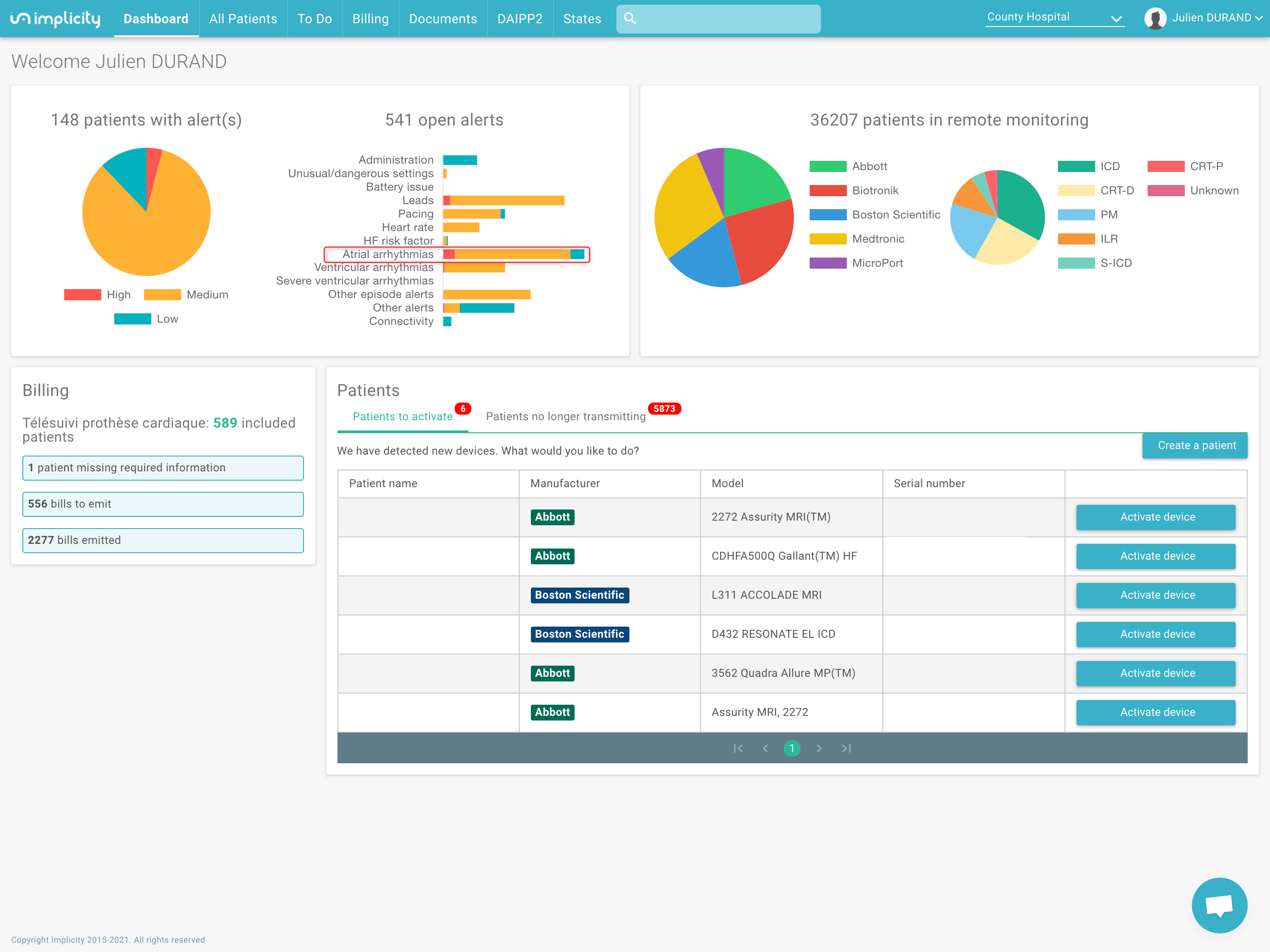
Pro tip: filter the patient list for a specific category (AF, for example) and click download, to get the list of all patients with open AF alerts.
Example for a patient with atrial fibrillation
Once you get in the patients list:
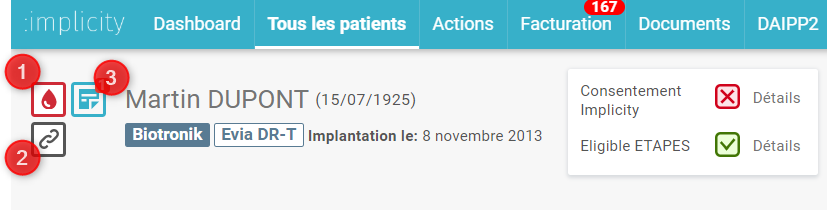
- Click on the patient name to access his/her profile. The icons visible on the left of the patient's name allow you to:
Since this patient has non-archived alerts, you are directed to "Open events" tab. This tab summarizes the relevant data from the other tabs in order to help you review the current alerts. The information displayed is adapted to the type of alert.
Manage the alert
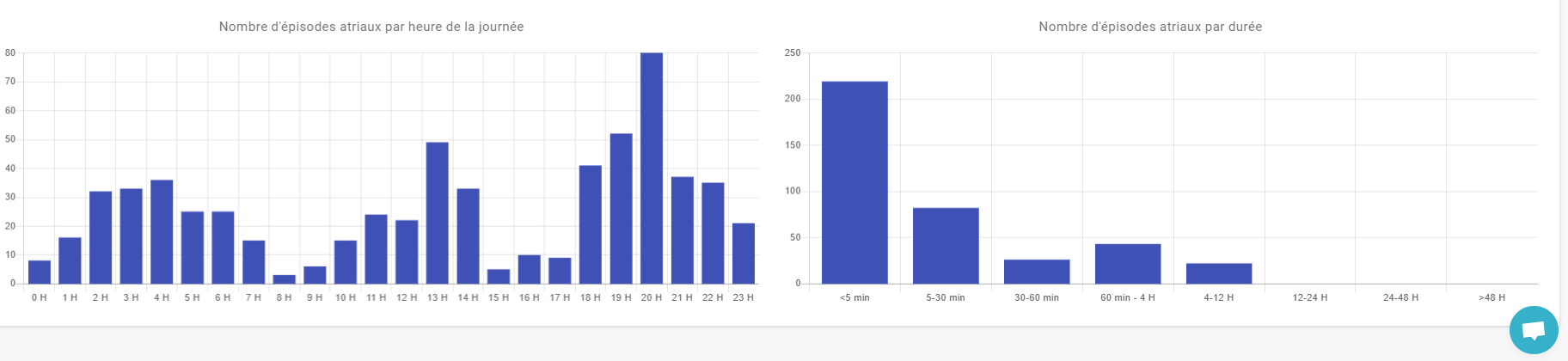
Watch the orange alerts of the patient and scroll down the page to view the information relevant to the management of an atrial fibrillation episode:

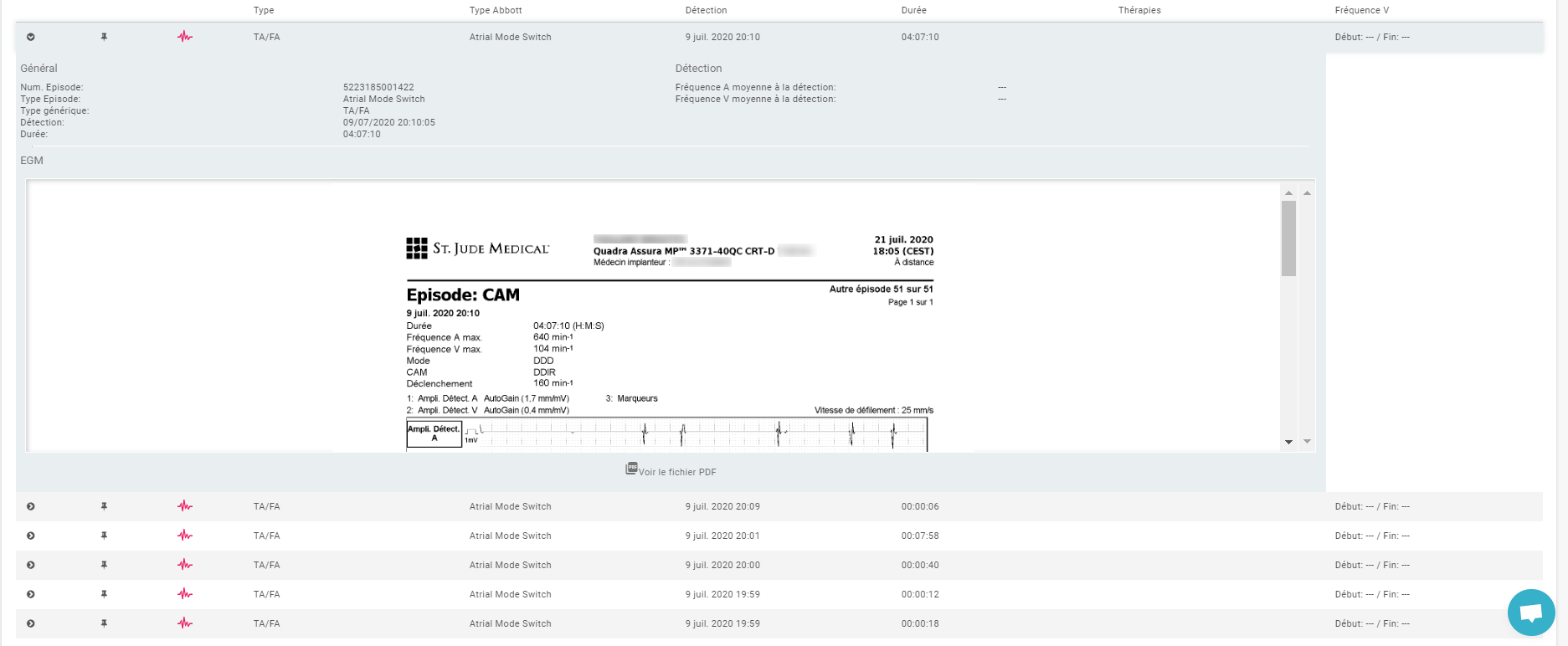
The shortcut "Last report" on the right top of your screen allows you to access all the PDF reports that the manufacturer has sent.
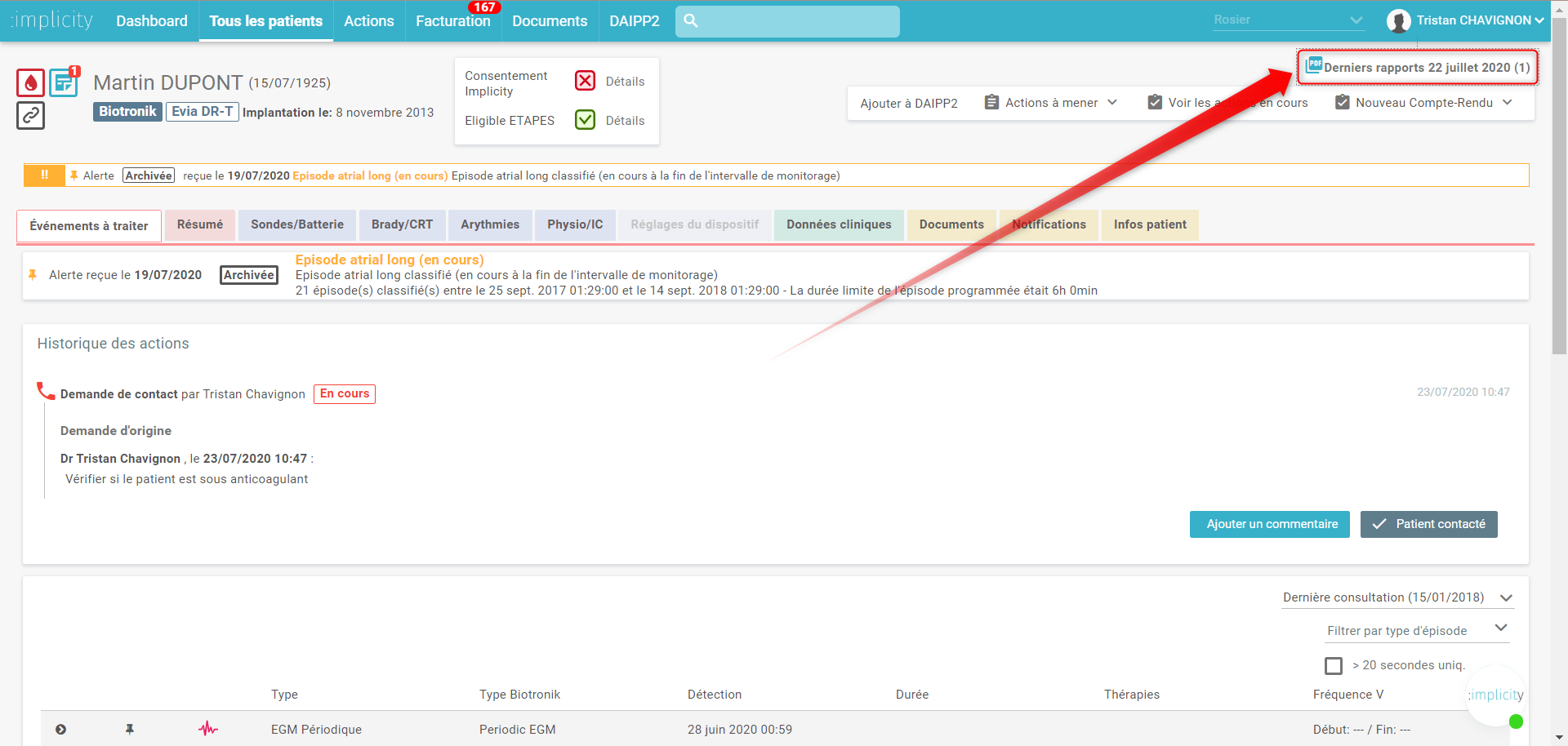
You can decide to submit a To-Do task for this patient. (For example:contact the patient to check if he/she is under anticoagulant)
- If you think this alert is necessary for patient follow-up in the future, you can "pin" this alert to make it continuously visible on the top alert banner.
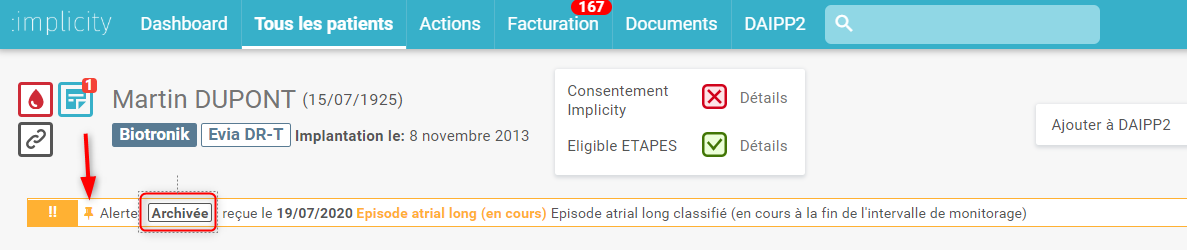
- If you determine your alert does not need to be escalated, click on "Archive" on the right of the alert to validate you have reviewed the event. You can also click on "Archive all" to store all alerts at once.
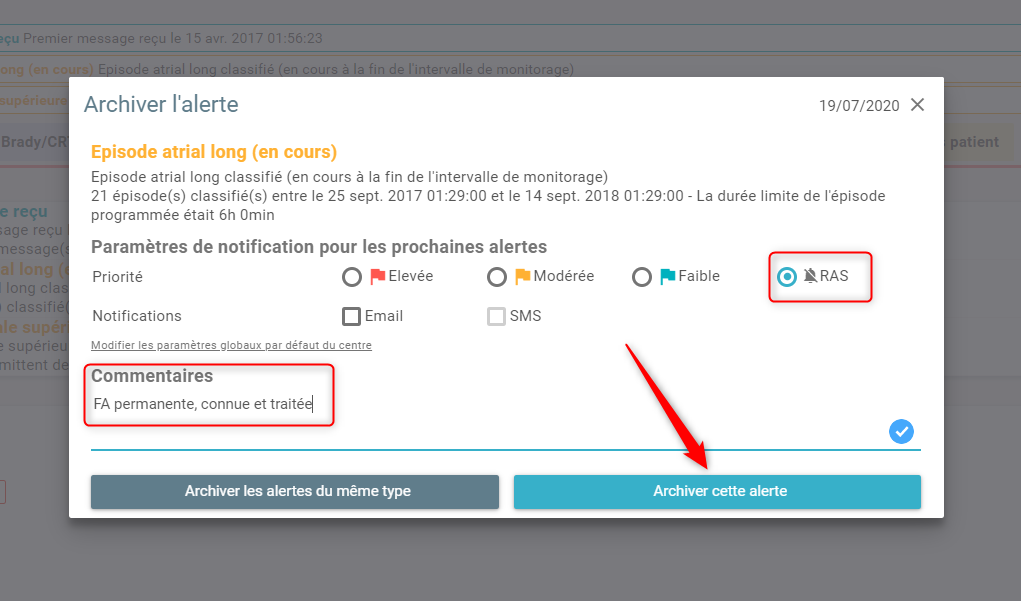
During the archiving process, we suggest you to:
- Change the alert priority: refresh the patient profile to keep only relevant alerts for this patient. It is recommended to switch the non-relevant alerts "OFF".
- Write an archive comment to keep track of the actions and notes related to the alert.
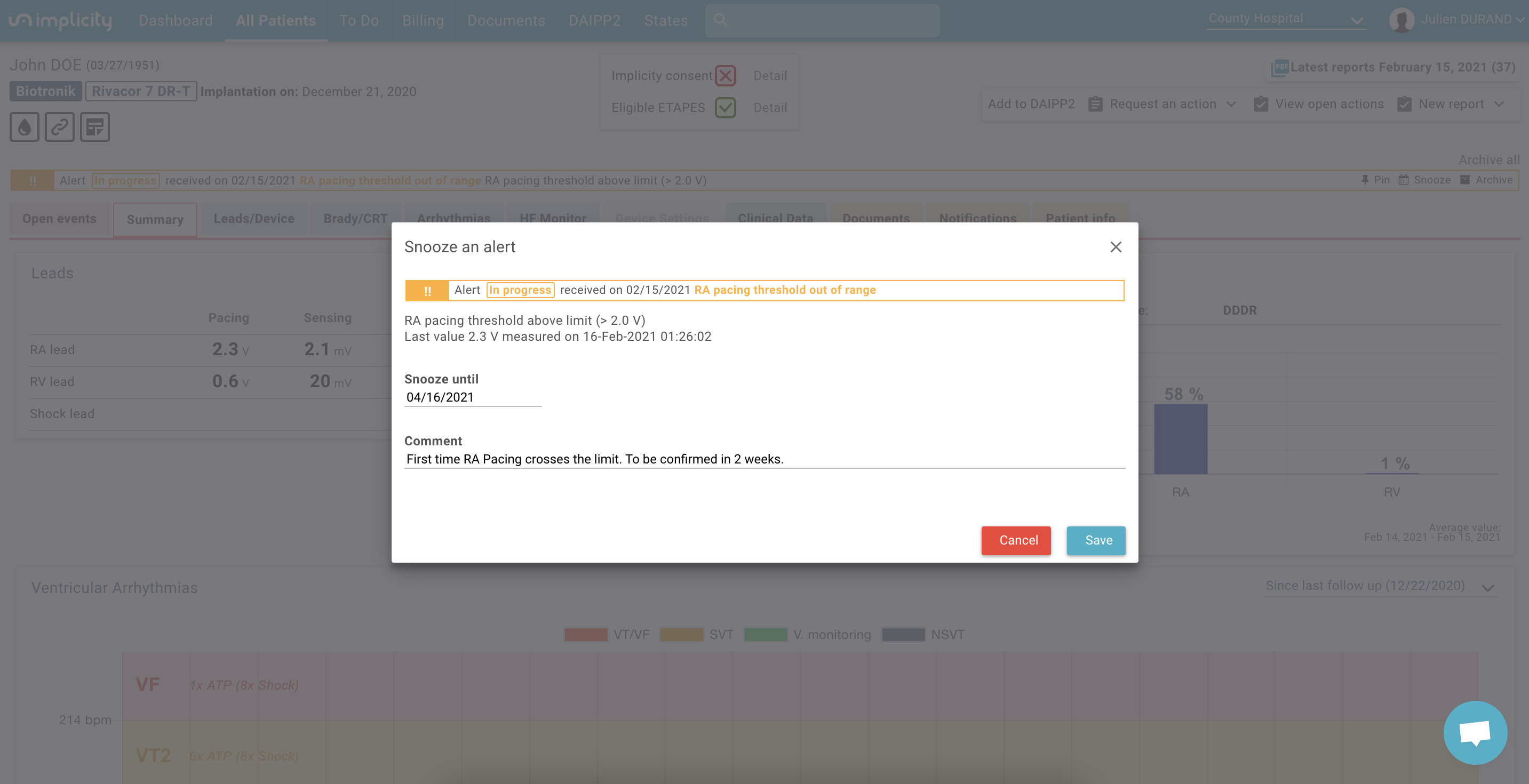
For example: In the case above, you've got a RA lead impedance alert, you can also snooze the alert before making a decision if you want to wait for a second measurement. The snoozed alert will come back as open alert at the date you've specified.
The snoozed alerts are still visible on the patient profile, but they don't show up in your dashboard and list of patients with alerts.
For connectivity-related alerts, you can also indicate a specific reason for the disconnection. For example: the patient is on vacation or in the hospital.
For traceability of these alerts, the archive comments are accessible via the patient timeline in the "Summary" section.