For a patient, you may want to add a note that is easy to access on the patient's page. The patient note allows you to quickly review the key information.
Add a note
- Go to a patient profile
- Click on the “Note” icon in the upper left corner next to first and last name.
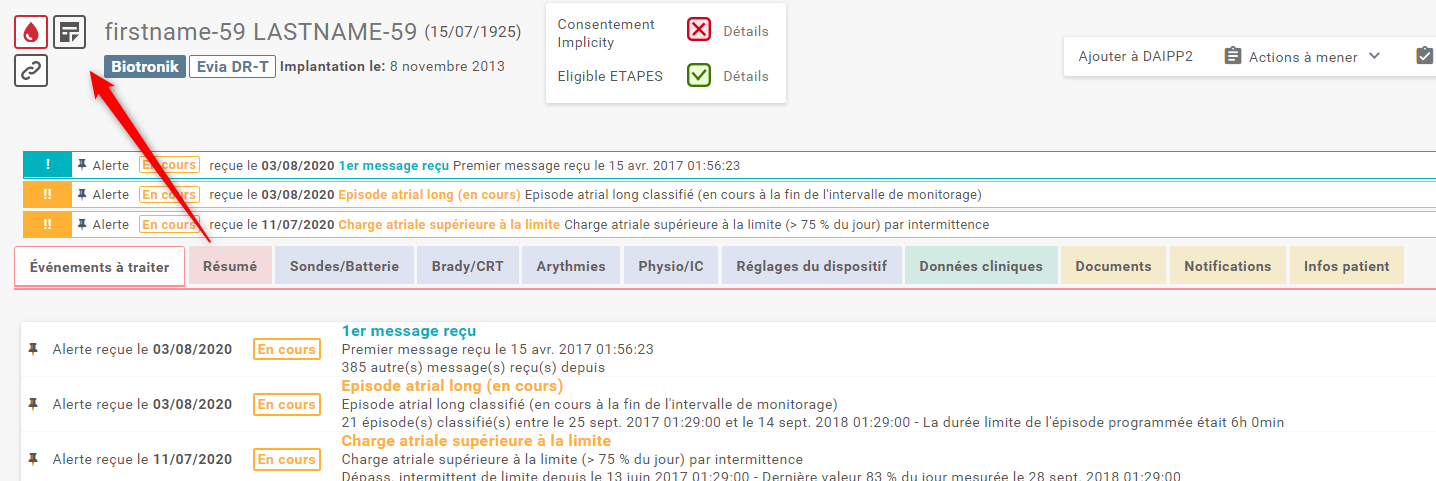
You can now add the patient’s key information. For example, the patient’s anticoagulant (especially if it is a AF patient) or the type and date of the last alert received.

We recommend to not enter too many details here. For more information about the patient, use the section “Indications” in “Clinical Data” tab instead.
Viewing a note
You can find the created note:
- Either on the patient's profile
- Or in the "All patients" tab.
On the patient’s profile the “Note” icon is highlighted in blue. To view the note, simply move the cursor over it.
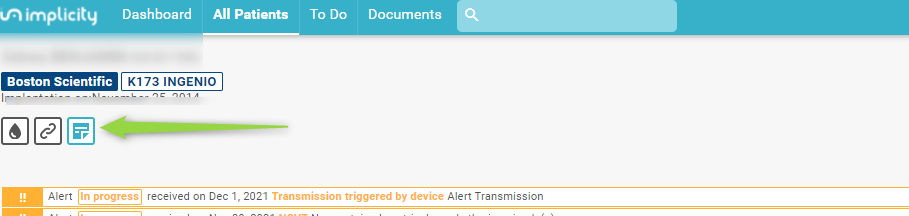
When you deal with alerts, save time by viewing key information related to the patient at a glance. In order to achieve this:
- Go to the "All patient" tab
- When you see a blue note icon, it means that a note is associated with this patient. Move the cursor over it for viewing the note.