You may want to bookmark the three main tabs utilized often on the Implicity platform:
- Dashboard
- All patients
- Actions
Managing my patients from the dashboard
From the "Dashboard" you can manage 3 types of patients:
- Patients to activate
- Patients no longer transmitting
- Patients with alerts
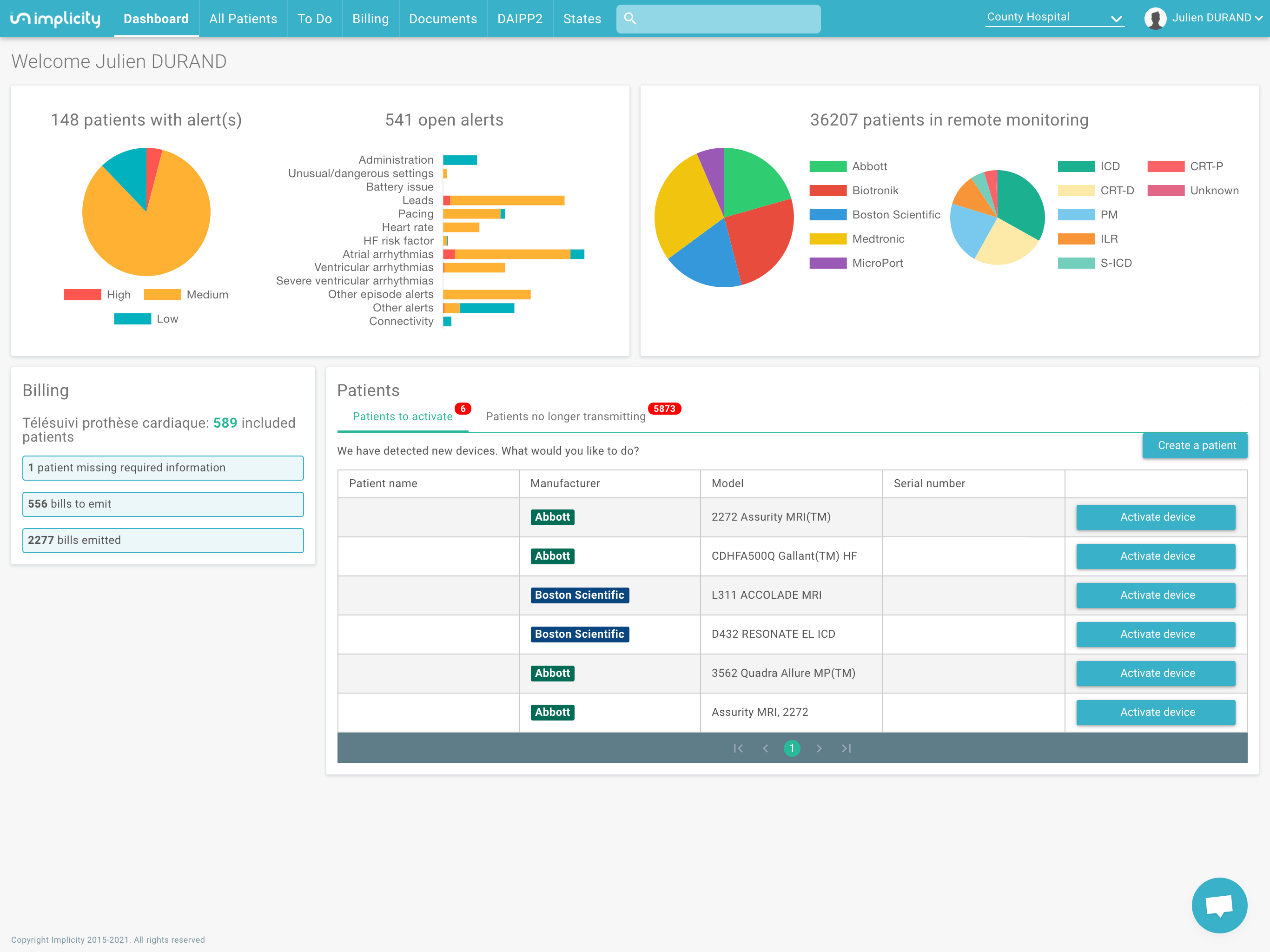
Patients to activate:
Clicking on the "Patients to activate" tab you can:
- Create a new patient profile
- Assign a new device from a device change out to an existing profile
- Enter administrative information necessary for invoicing
Patients no longer transmitting:
Click on the "Patients no longer transmitting" tab. Here you can choose whether you would like to deactivate the patient or not. These are patients who stopped sending transmissions for a longer period of time for the following reasons:
- The cardiac device has been explanted from the patient's body
- The patient has been transferred to another medical center
- The patient is deceased
- The patient has missed their scheduled transmission (e.g. if he has gone on holiday without the transmitter)
Patients with alerts:
The top left pie chart indicates the number of alerts for review categorized by their priority: high, medium, low. For example, if you click on "high priority" you will directly access a patient list with high priority alerts.
The graph next to the pie chart shows the number of open alerts per category. Clicking on a category bar sends you to the list of patients filtered by alert category.
Pro tip: filter the patient list for a specific category (AF, for example) and click download, to get the list of all patients with open AF alerts.
Managing patients from the "All patients" tab and the search bar
You can find all your remote monitoring patients on Implicity in the "All patients" tab. On this page, patients are listed by default according to how critical the alert is (the most important events are located on the top).
In this tab, to the right of the blue alerts icon, some alerts may be displayed in grey. These are new alerts received by the manufacturer that we have not yet categorized on Implicity. Don't forget to look at grey alerts and process these reports as well.
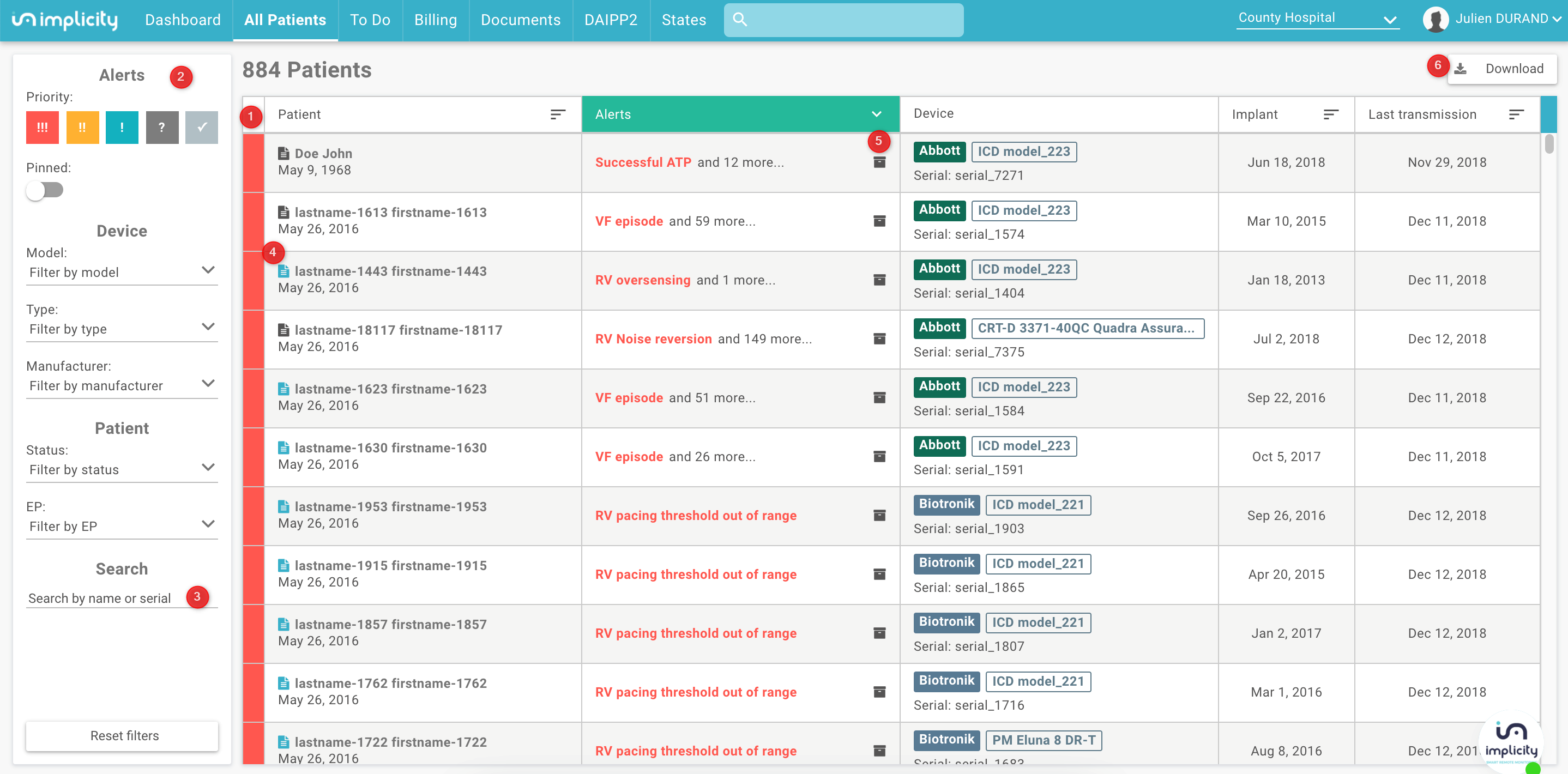
Please reference the image above for the corresponding number for the following information:
(1) Sort the patient list according to the criteria listed at the top:
- Name
- Alert
- Device
- Manufacturer
- Implantation date
- Last transmission
(2) Filter alerts (left side of screen):
- Alerts priority
- Click on the “red priority icon” 🡪 then only the red alerts will be displayed on the patient list.
- Device models
- Device types
- Manufacturer
- Patient status (with or without transmission, patient inactive)
- EP
- Patients groups
- Pinned alert. If you pin an alert to review for later, this will give you a list to return to view.
Once you have selected your filters, a list of patients is displayed. To keep this list, we advise you to click on the "next patient" button on the patient profile, which should save you a few clicks!

🡪The button "Reset filter" clears all the selected filters
(3) You can look up a patient with their first and last name or the serial number of their device in the "Search" field.
Shortcuts on the patient list:
- (4) There is a notepad icon left of the patient’s name. It indicates a note is written for this patient’s profile. You can scroll over the note icon to reveal what is written.
- (5) On the right side of the alert column is the archive button. Click to archive an alert.
Click on the patient’s name to have direct access to their profile.
- (6) The “Download” button will download a list of the filtered patients listed. The file contains the following patient information: patient Implicity ID, address, deactivation date & reason - if any. File format works with Excel.
Managing the ongoing or completed tasks from the "To do" tab
The "To Do" tab gives you a quick overview of your clinic's current actions. You can sort these actions according to:
- The type of action (1) (contact, review or appointment)
- The status of action (2): in progress or closed.
The actions are displayed by default: in progress.

The actions are listed from the most recent to the oldest. To see the details of an action, click on the arrow on the right (3). From this page, you can process an action in the same way as from the "summary" tab on the patient profile.